Forgot your password? Go to Proxima Cloud CRM password reset. This page is for the first login, when you haven't set a password yet.
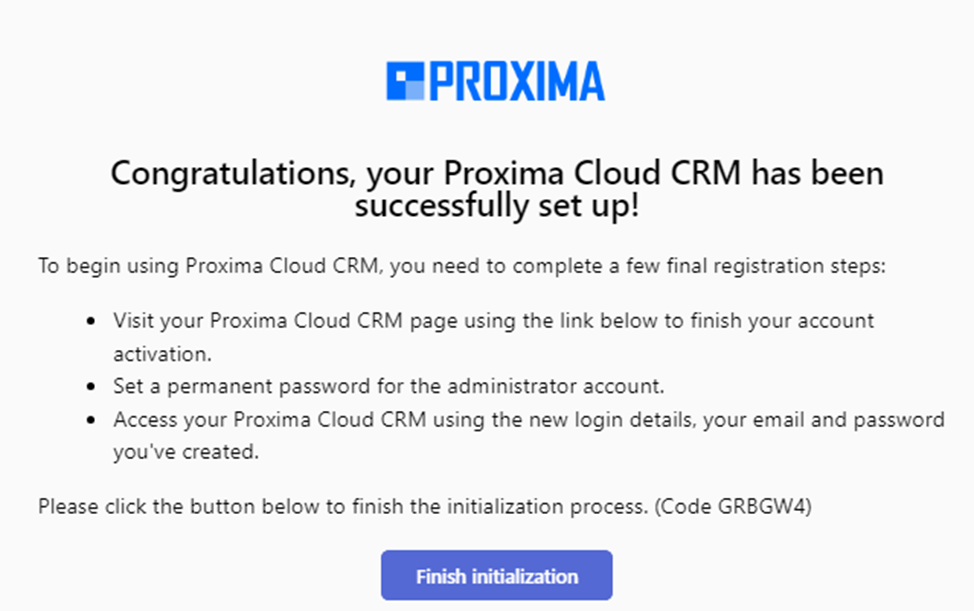
Once an account is created for you in Proxima CRM, you receive an invitation email. To log in for the first time, complete the registration and set your password from this email.
Completing the registration
- Open the email from id.admin@robots.proximaresearch.com.
-
Click Finish initialization.
-
In the dialog that opens, create your personal password and enter it again in the Confirm Password field.
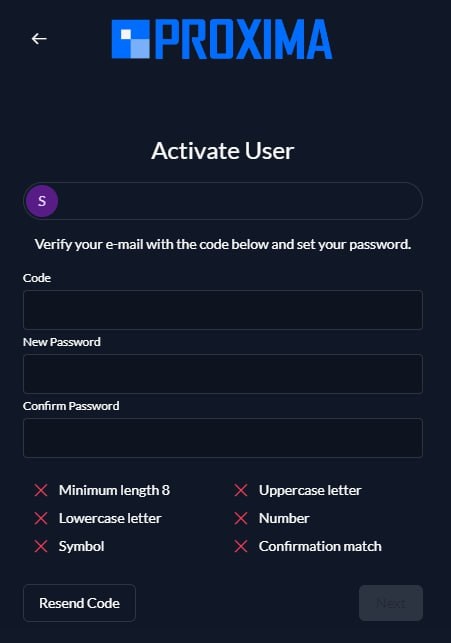
- Click Continue.
Password requirements
Your password must:
- contain at least 8 characters;
- contain at least one uppercase letter;
- contain at least one lowercase letter;
- contain at least one number;
- contain at least one symbol.
The Password and Confirm Password fields must match.
Each requirement that isn't met is marked with a cross.
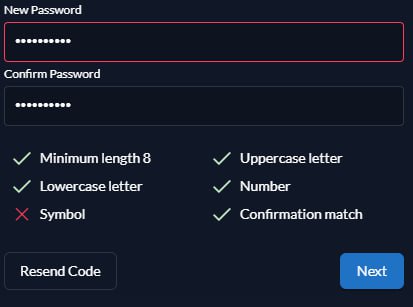
Important: The Continue button becomes active only when the password meets all the requirements. An invalid password isn't saved, and an error message appears.
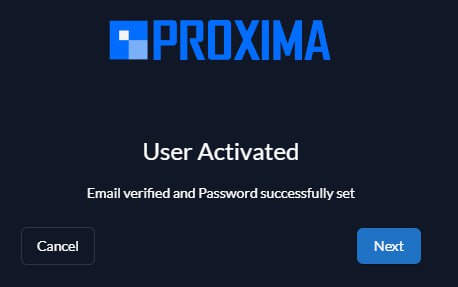
When the password is accepted, a confirmation message appears, and you can log in to Proxima CRM with your email and the new password.