Supported devices
The Proxima CRM mobile app is available for:
- iPhone and iPad: iOS / iPadOS 15.0 or later, from the App Store;
- Android phones and tablets: Android 8.1 or later, from Google Play.
Important: There is no Proxima CRM app for macOS, Windows, Windows Phone or other platforms. On a computer, use the web version of Proxima CRM in a browser. You don't need to install anything.
Before you begin
Make sure that you have:
- a stable internet connection;
- free space on the device: about 1 GB, depending on your company's settings;
- time for the installation: from 5 minutes to an hour, depending on your company's settings and the internet connection;
- a completed registration: your email and password from First Login: Create Your Password (Registration).
Installing the app
- Open the App Store or Google Play. You can also use direct links:
-
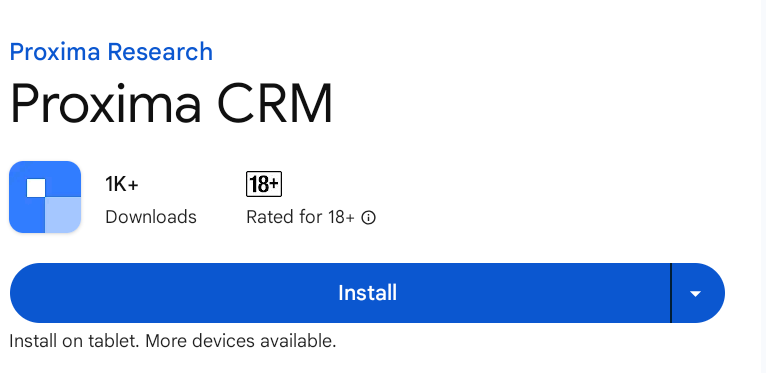
Search for Proxima CRM and select it in the search results.
-
Tap Install and wait until the installation is complete.
-
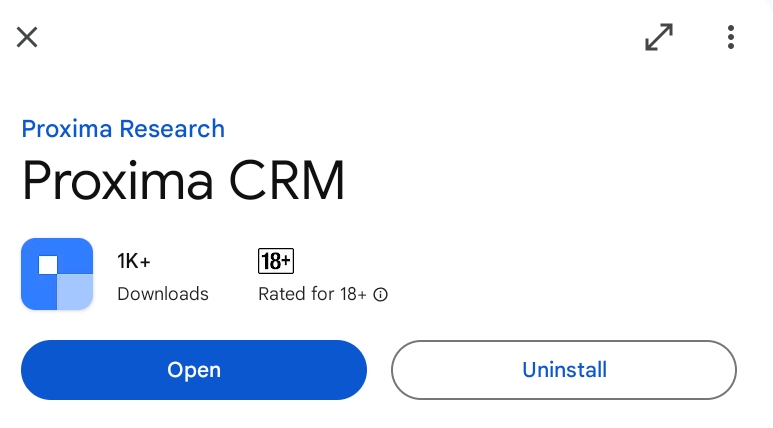
Tap Open to start the app.
-
Enter your server address and tap Continue.
Note: You can find the server address in the email you receive after you complete the registration.
-
Enter the email address you used during registration and tap Continue.
-
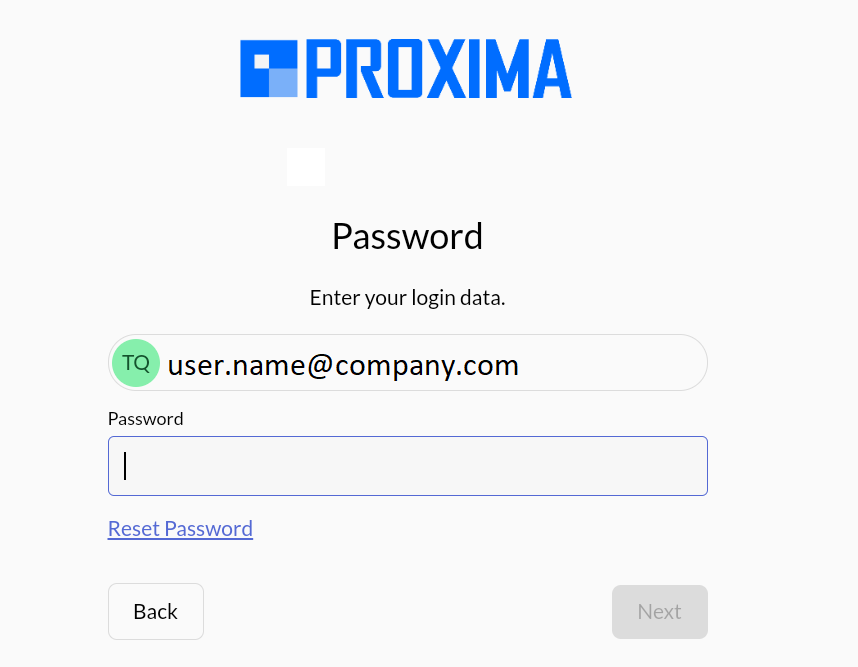
Enter your password and tap Next.
-
The Loading the database dialog appears. Wait until the loading is complete.
-
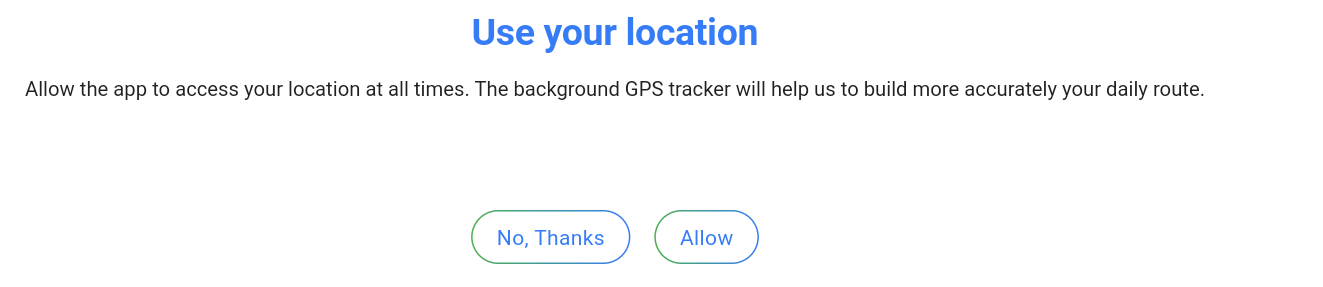
Allow access to your location: tap Allow.
The Proxima CRM app opens, and you can start working.